15 Aug 2025
It's not just for nerd code stuff, this is handy for art and music too! In this part we'll just be doing setup and learning how to commit.
For the purposes of this pitch we’re going to stick with Git, although Perforce and SVN are options. I am only going to focus on Windows setup, although the setup files for Mac and Linux are also provided for each piece of software used. This also won’t be using big corporate stuff that’s from Microsoft or Atlassian, so no GitHub or SourceTree. We’ll be sticking with smaller free software and services.
Everyone should be using versioning software for their data files. It’s a great way to keep backups and be able to roll back in time to any change made. Be it an Affinity/Photoshop source file or an Audacity project, you want the ability to roll back your project to a previous checkpoint. You also might have heard of Git and about how it’s a pain in the ass, and yeah it is! That’s why I’m writing this, to drag you through the shitty part so you can be set up and live your life happier.
This guide is going to list out every detail every step of the way so that you don’t have to sweat any of the weird configuration shit. Not everyone needs to change their line ending conversion settings, and also, not everyone knows what it is. You will also not be touching any command lines! Just follow the steps in the guide and you will be good to go!
There’s also two main sections, SETUP GIT and USING GIT. I highly recommend following the guide as-is since it assumes you have done everything as instructed, but if need be you can skip ahead to USING GIT.
You will need to download both of these before proceeding into the setup instructions!
First we’ll be installing Git. Run the Git installer, “Git-2.50.1-64-bit.exe”. For each installation screen:
Git will now be installed, you can uncheck “View Release Notes” and click Finish. While Git provides command line and UI options for interacting with it, they’re either barebones (“Git GUI” UI version) or require arcane Git knowledge (“Git Bash” command line version). We’ll be using a Git client instead called Minimal EGit. It’ll provide extra features so we can easily manage files and see when they were changed.
Extract the “MeGit” folder in the “megit-0.9.0-win32.win32.x86_64.zip” zip file to your computer. Open up that “MeGit” folder, then find the file “megit.exe”. If you’re using Windows 10, you can right-click “megit.exe” and select Pin to Start to add it as a Start Menu tile.
Select the Start Menu tile or double-click “megit.exe” to open Minimal EGit. A window will appear called “Minimal EGit Launcher” and ask you to select a directory for its workspace. Leave the default path displayed in the text box, check “Use this as the default and do not ask again”, then click Launch.
When Minimal EGit opens, a “Microsoft Defender Exclusion Check” window will appear. Microsoft Defender can slow it down, but we’ll change this for safety’s sake to “Keep Minimal EGit being scanned by Microsoft Defender”. Then, click Proceed. We can change this later if it presents a problem.
There! That’s it’ you’ve got your source control program set up and open and ready to go! Now we can move onto creating your first repository with Minimal EGit.
We’re going to start off with a practical example: Converting your existing project files into Git-versioned files. While there shouldn’t be any issues with this next process, I still highly recommend making separate backups of any data being used in new repositories.
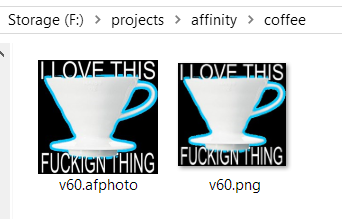
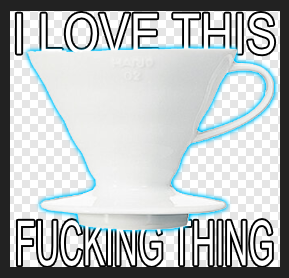
For this example, I have a directory for an Affinity Photo source file of my V60 blogpost image.
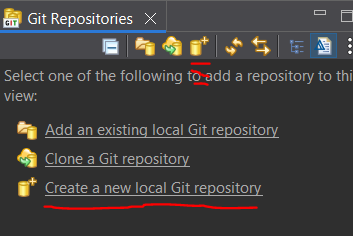
In Minimal EGit, select the “Create a new local Git repository” option in the left-hand “Git Repositories” section. If that text isn’t available, there then is an icon at the top of “Git Repositories” that will also work.
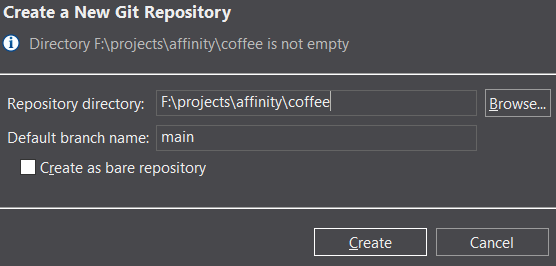
In this next window, you will be prompted with a default value in the “Repository directory” text field. Select the “Browse…” button, then locate your project directory. For my coffee project files, I selected the folder they are in. Leave the default branch as “main”, then click Create.
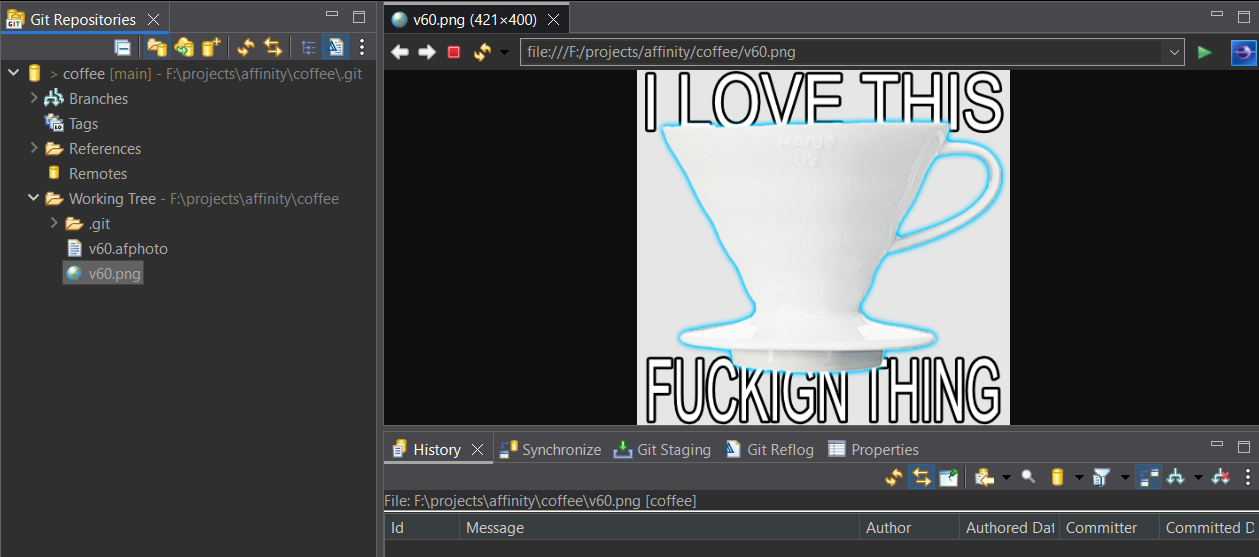
Congratulations, you’ve created a repository! If you expand it in the Git Repositories tree on the left-hand side, then open the “Working Tree” folder, you’ll see your files that were in the directory you selected. There may also be an additional .git folder visible that will be used by Git to operate. Do not delete this or else you will lose all your Git history! THAT’S VERY BAD!!!
You can see for my Coffee repository that the v60 source file and exported PNG file are listed, and as a neat bonus if I double-click the PNG it’ll be displayed inside Minimal EGit in a new tab. You can also do this with text files!
We’re almost done creating this repository. There’s one last thing to do, and that’s creating the very first commit. Think of it like saving a project file for the first time. The repository has to be told what files to track multiple versions of, so first we’ll add the V60 source file and PNG to the repository.
Find the “Git Staging” tab. This should be in the same group of tabs as “History” and “Synchronize” on the right half of Minimal EGit. In it, you’ll see the files that were in the directory you selected in the “Unstaged Changes” section of the Git Staging tab. Select the files you want to be versioned (I’m selecting the source file and PNG), then select the green Plus button to add them to the Staged Changes list. You can also click the green double-plus button to add all listed files.
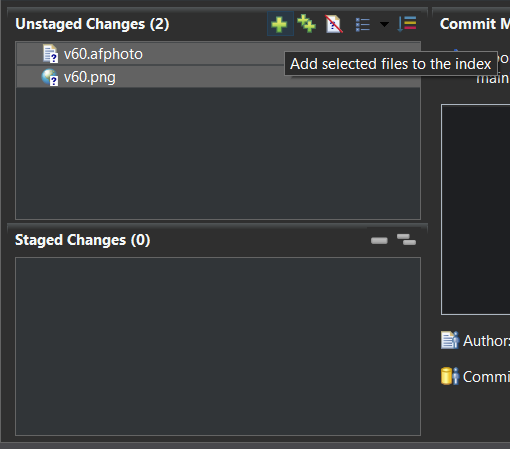
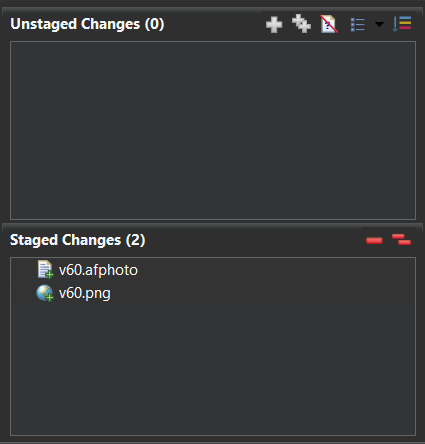
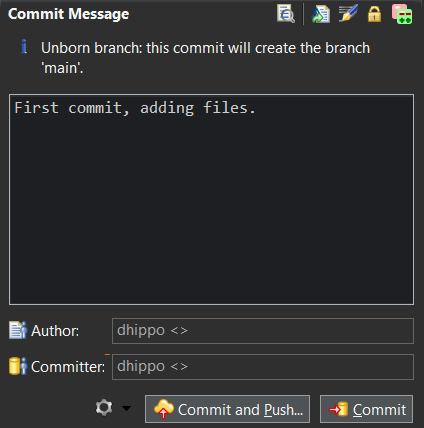
Enter a commit message, something to describe what we’re doing. “First commit, adding files.” will do fine. For the Author and Committer text fields, you can enter in your name or a username, then follow that up with an email address inside brackets. Let me tell you that when it comes to a local repository, this does not matter. Here I’ve used a short handle for a username, and two empty brackets (<>) for an email address. Select Commit, and you will have created your very first checkpoint in this repository. Congrats!
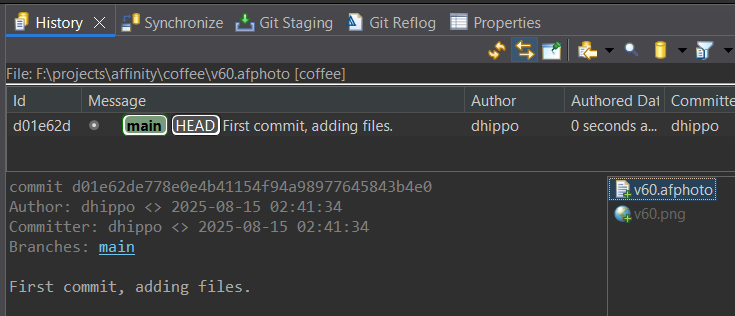
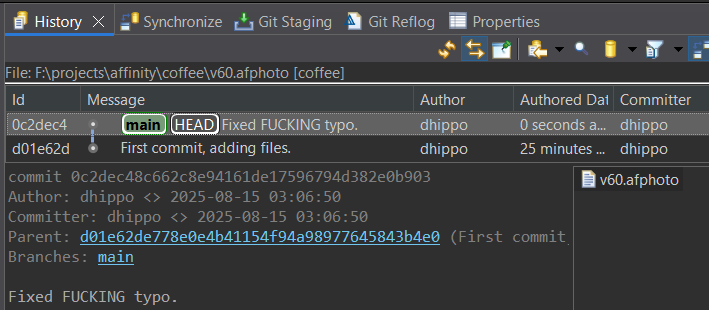
We can confirm that the commit was saved by going to the History tab. There’s a brand new commit listed with the message we left! It’ll also display the files that were included in the commit.
That’s it! Our files are now permanently preserved as they currently are at this point in time. But what if we make some changes?
Whoops! Turns out the word FUCKING in that coffee image is misspelled! It’s an easy mistake. I’ve reopened the Affinity source file, fixed the typo, and saved the source file.
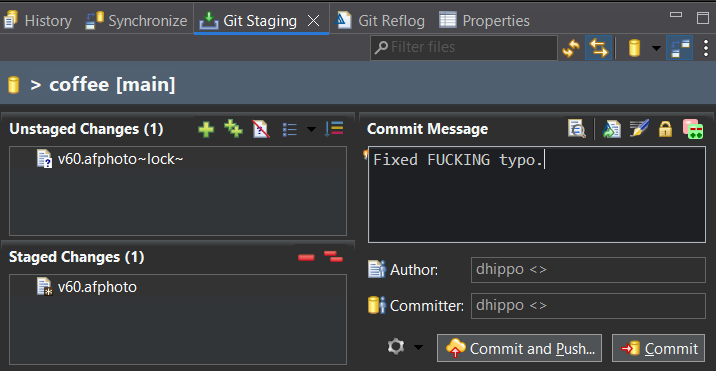
Open the Git Staging tab in Minimal EGit and hit the Refresh  icon at the top right of the Git Staging tab. You’ll now see the source file listed as an Unstaged Change (and if it’s still open in an editor, a lockfile). Git knows these files have changed, but it’s waiting for you to tell it which of these changed files should be saved in the repository.
Select the source file (not the lockfile), then press the green Plus to move the file to the Staged Changes list. We are letting the repository know that we changed this file, and we want to save this change to the repository. Enter a commit message (I said “Fixed FUCKING typo.”), enter the Author/Commiter info, then click Commit.
That’s our second commit to the repository, and if we flip over to the History tab we can see it above our first commit! Now we have two points in time saved for this project file: when it had the typo, and when the typo was fixed. We can also go back to that first commit and see the original file, but we’ll cover safe ways to do that another time. For now, your changes have been recorded.
 in the Git Staging tab of Minimal EGit.
It’s an additional step to your workflow, but it does not need to be done all the time. Consider committing any changes you made to a project file at the end of the day, describing what you did so you can pick back up where you left off the next day. Keep the habit of committing any files you change in your workflow, and you will get used to saving your project’s file history.
Also, how many changes are worthy of a commit is up to you. You can use commits as large checkpoints, or make a small commit each time you edit a layer in an Affinity document. It’s up to you how you want to record the changes made. Do keep in mind that the more commits you make, the more space the repository will take up on your storage device.
There’s more stuff to discuss, like safely retrieving older files in your repository so you can compare them with current files. There’s also using an online repository to store your code or project files remotely while providing an offsite backup should your computer ever explode. I can recommend Codeberg as it does not have the baggage that GitHub/Gitlab have, and you can also create private repositories so nothing you upload gets shared.
If you’re feeling more daring or are a computer sicko and want to self-host your own Git repository website, I can highly recommend Gitea. I’ve got it running as a flatpak on my NAS and I easily imported all my repositories to it from GitHub, PRs and Issues included.
I really hope this guide has been useful for getting yourself started with a repository. I’ve kept it brief because I’m posting once a day this month, and also kept it simple so that I do not confuse anyone who doesn’t venture into technical stuff too often. The end goal here is to get you into a position where you can reliably create commits with no issues - like an expert! If anyone wants me to go more in-depth into using Git please reach out to me on Bluesky!
Thanks to Andy Price and Jeremiah Fieldhaven for proofreading!